
1.Download & Install the Plugin
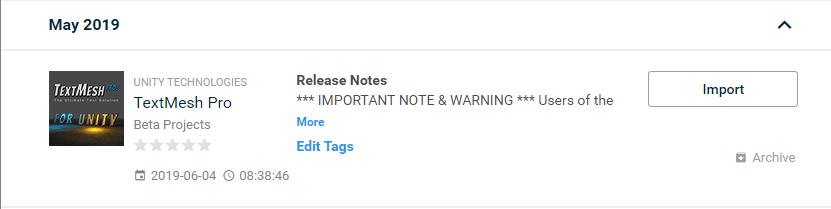
Download and install the JoyMonster plugin from the Unity store. Once the download has completed, import the plugin into your project using the import button on the package in the unity store.
We recommend using the Unity store to download and install the plugin. If you are using a package that did not come through the Unity store, you may import the package by going to Assets > Import Package > Custom Package.
Dependencies
- The plugin requires TextMesh Pro. If you are running Unity2018.2 or newer, you will be automatically prompted to install the package.
- You may download and install TextMesh Pro directly from the Unity store if you are using an older version.
2.Testing The Plugin in the SandBox - Defining the API Key
Get your Sandbox API Key, and set it inside the JoyMonster window.
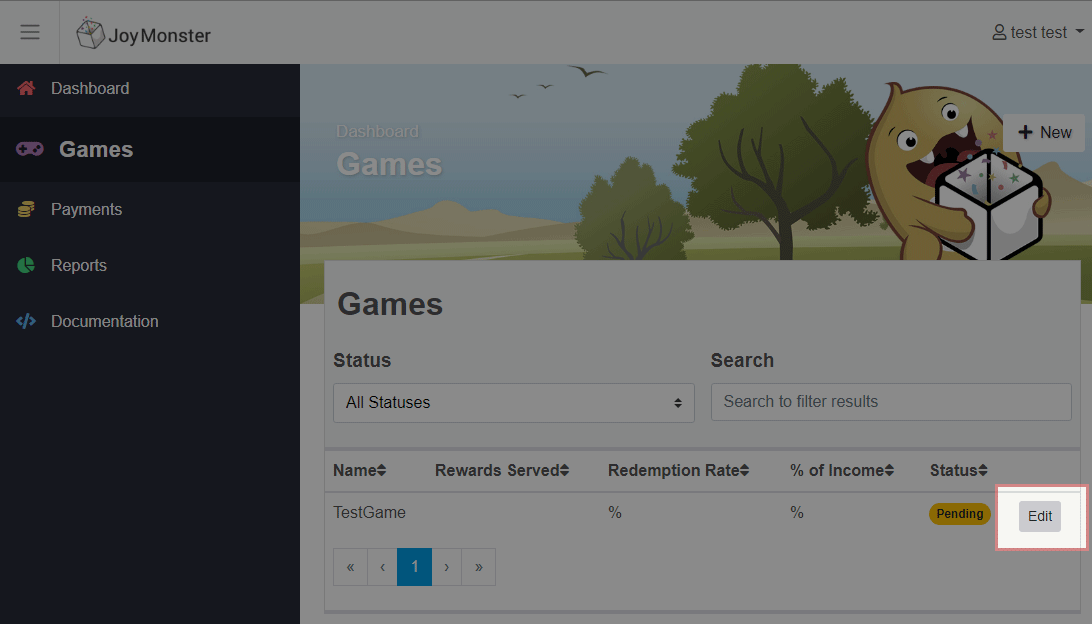
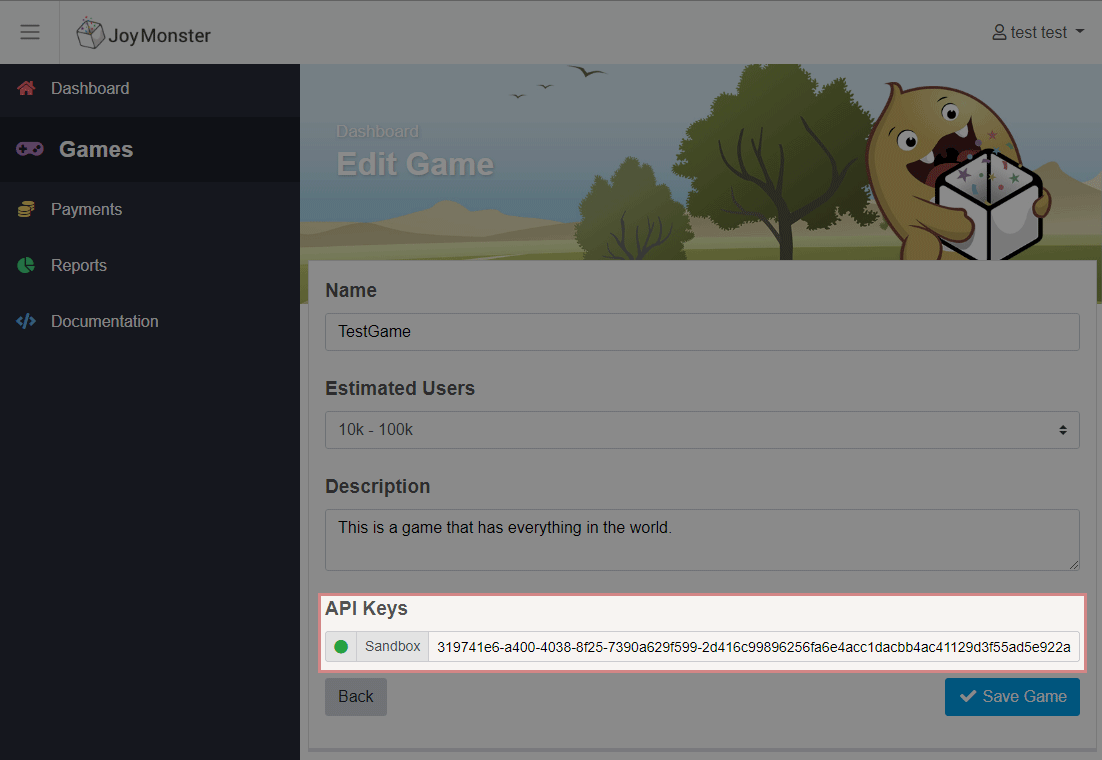
For that, simply open the Window -> JoyMonster Settings window...
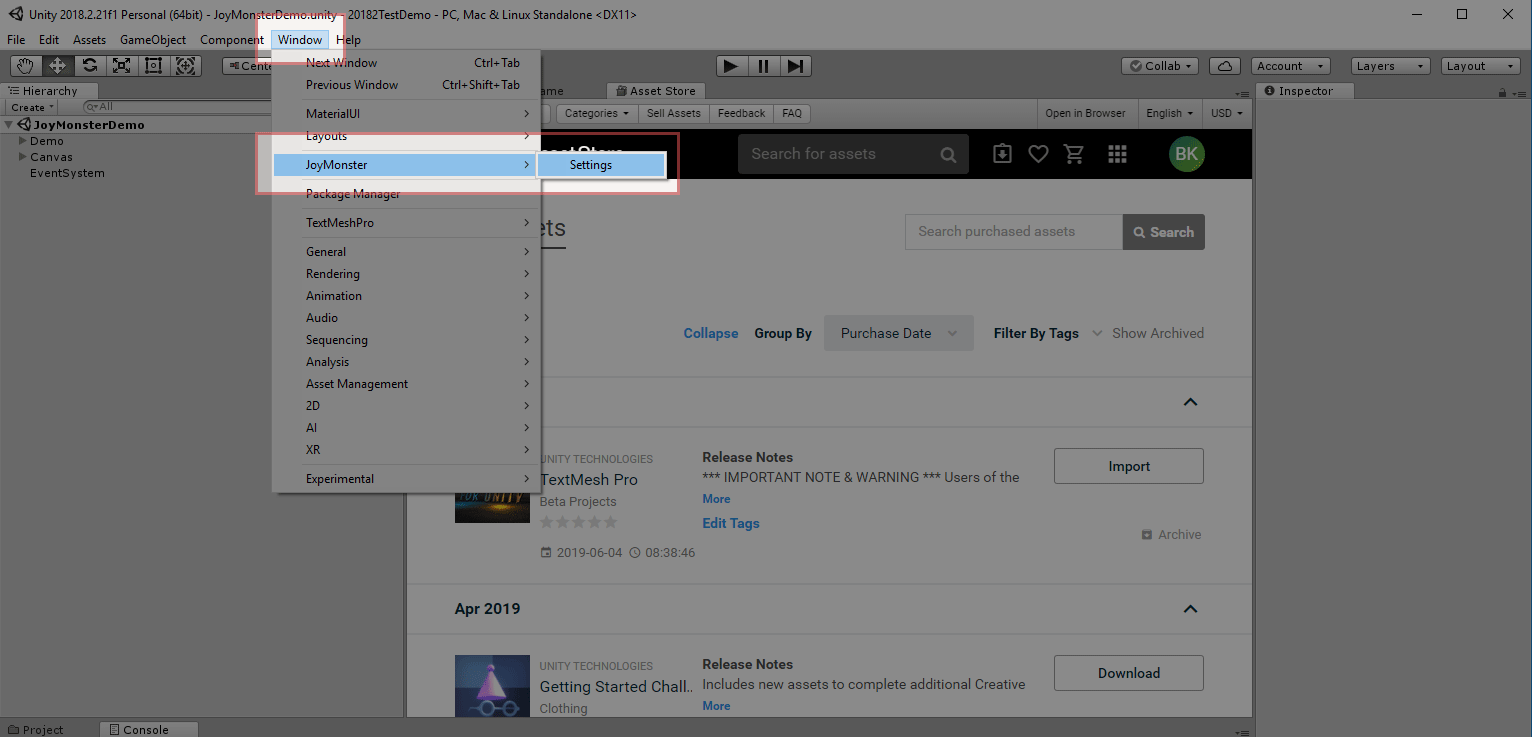
...and enter your API Key inside the Authentication section.

3. Launching The Plugin With Production API Key - Defining the API Key
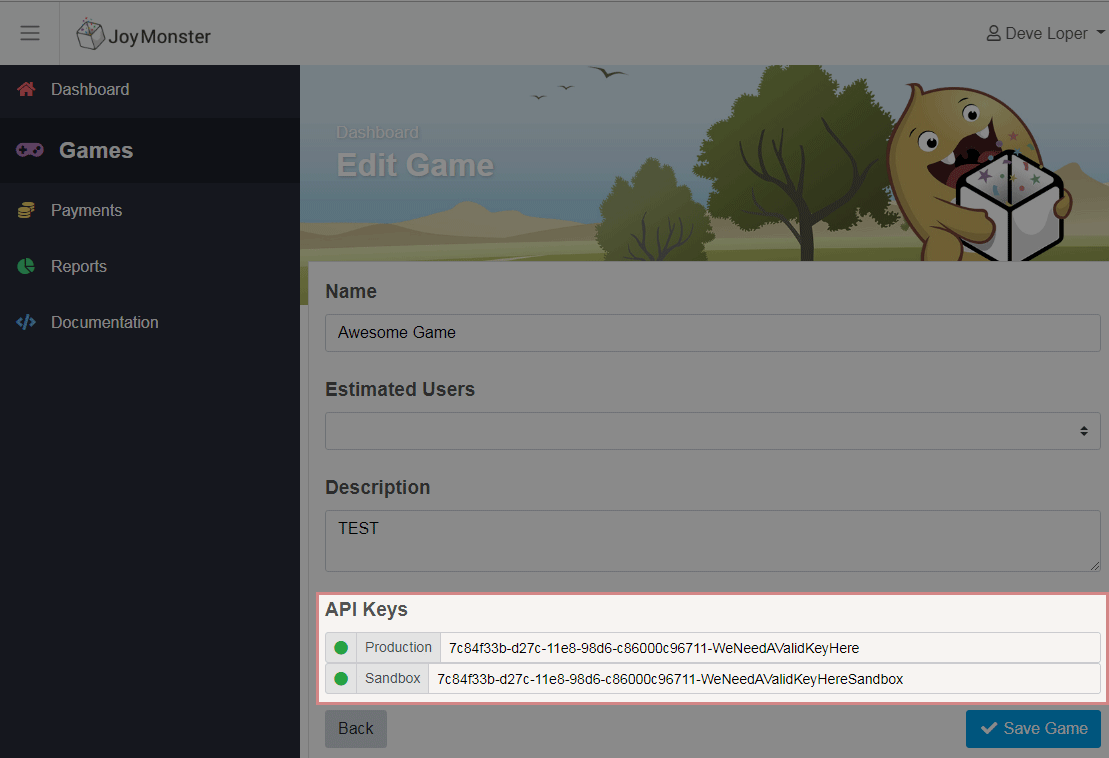
Once your game has been approved by the JoyMonster team, a production API key will be issued, and will be available on the "Edit Game" page, which you may then insert into your Unity settings.
4. Initializing The Plugin
The plugin will automatically initialize itself whenever the first call to any part of the API is made (usually this would either be when checking for offers in the wallet for a button in a menu, or when JoyMonsterPlugin.ResetBoxCollectedStatus() is called upon level start